---
title: Build your first flow
url: https://docs.triply.cc/tutorials/build-your-first-flow/
description: Build a flow that imports the Iris dataset, selects one species with a CONSTRUCT query and
validates the result with SHACL, then run it — in about twenty minutes.
availability:
- 'Private preview: This feature is switched on per instance, by arrangement. Get in touch if you would
like access.'
---
# Build your first flow
This tutorial builds a flow with three tasks: it imports the Iris flower dataset from
triplydb.com, copies the observations of one species, *Iris setosa*, into a graph of their own,
and validates that graph against the dataset's SHACL shapes. Then it runs the flow and looks at
what it produced. It takes about twenty minutes.
## Before you start
You need an account on a TriplyDB instance that has Flows switched on. If your account page has
no **Flow** under **New**, it has not been switched on for your instance. The flow downloads a
file from triplydb.com, so the instance needs to be able to reach the internet.
You do not need to write SPARQL: the one query in this tutorial is given in full.
## 1. Create the flow
On your account page, click **New** and choose **Flow**. Leave the **Owner** as your own
account, enter `Iris setosa` as the **Flow name**, and click **Create flow**.
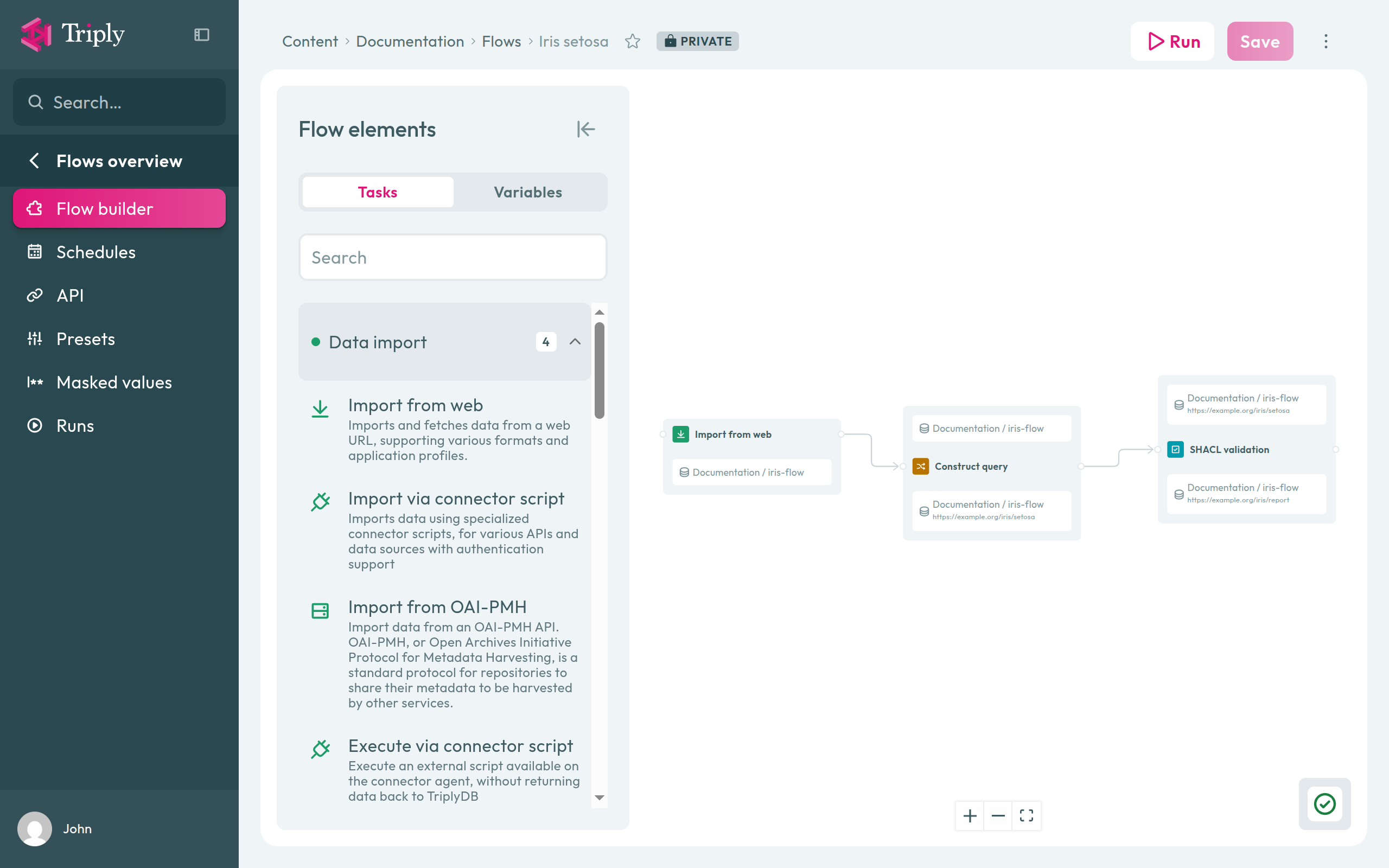
The flow builder opens: an empty canvas, with the **Flow elements** panel on the left listing the
task types you can use.
## 2. Import the data
Drag **Import from web** from the panel onto the canvas. Click the card's title to open its
settings on the right, and paste this address into **Data URL**:
```iri
https://triplydb.com/Triply/iris/download
```
A task names where its result goes on the card itself. Click **Select an output...** on the card.
In the dialog, set **Type** to **Dataset**, choose your account under **Account**, type
`iris-flow` under **Dataset name** and pick **Add "iris-flow"** from the list. Click **Save**.
The dataset does not exist yet; the task will create it when the flow runs. The card now shows
it as its output.
## 3. Select one species
Drag **Construct query** onto the canvas, to the right of the first task.
Connect the two: drag from the small circle on the right edge of **Import from web** to the circle
on the left edge of **Construct query**. The arrow means *run the import first*.
Click **Select an input...** on the new card. Under **Reuse a selector**, click your
`iris-flow` dataset, then **Save**. Click **Select an output...**, set **Type** to **Graph**,
reuse `iris-flow` again, and type `https://example.org/iris/setosa` under **Graph name**, picking
it from the list. Click **Save**.
Now click the card's title, click **Edit** beside **Query**, and replace the query with:
```sparql
prefix dimension:
prefix dbr:
prefix qb:
construct {
?observation a qb:Observation ;
?p ?o .
} where {
?observation dimension:variety dbr:Iris_setosa ;
?p ?o .
}
```
Click **Save** in the query dialog. The query copies every statement about the *setosa*
observations, and states that each is a `qb:Observation` — the class the dataset's shapes
describe.
## 4. Validate the result
Drag **SHACL validation** onto the canvas, to the right of **Construct query**, and connect
**Construct query** to it the same way.
On the new card, click **Select an input...**, set **Type** to **Graph**, click the
`https://example.org/iris/setosa` graph under **Reuse a selector**, and **Save**. Click
**Select an output...** and make it graph `https://example.org/iris/report` in `iris-flow`, as
before.
Click the card's title. Under **Shapes graph**, click the pencil, reuse the `iris-flow` dataset
and **Save**: the imported data brings its own shapes along.
The icon in the canvas's bottom-right corner turns into a green check: the flow is complete.
Click **Save** at the top of the page.
## 5. Run it
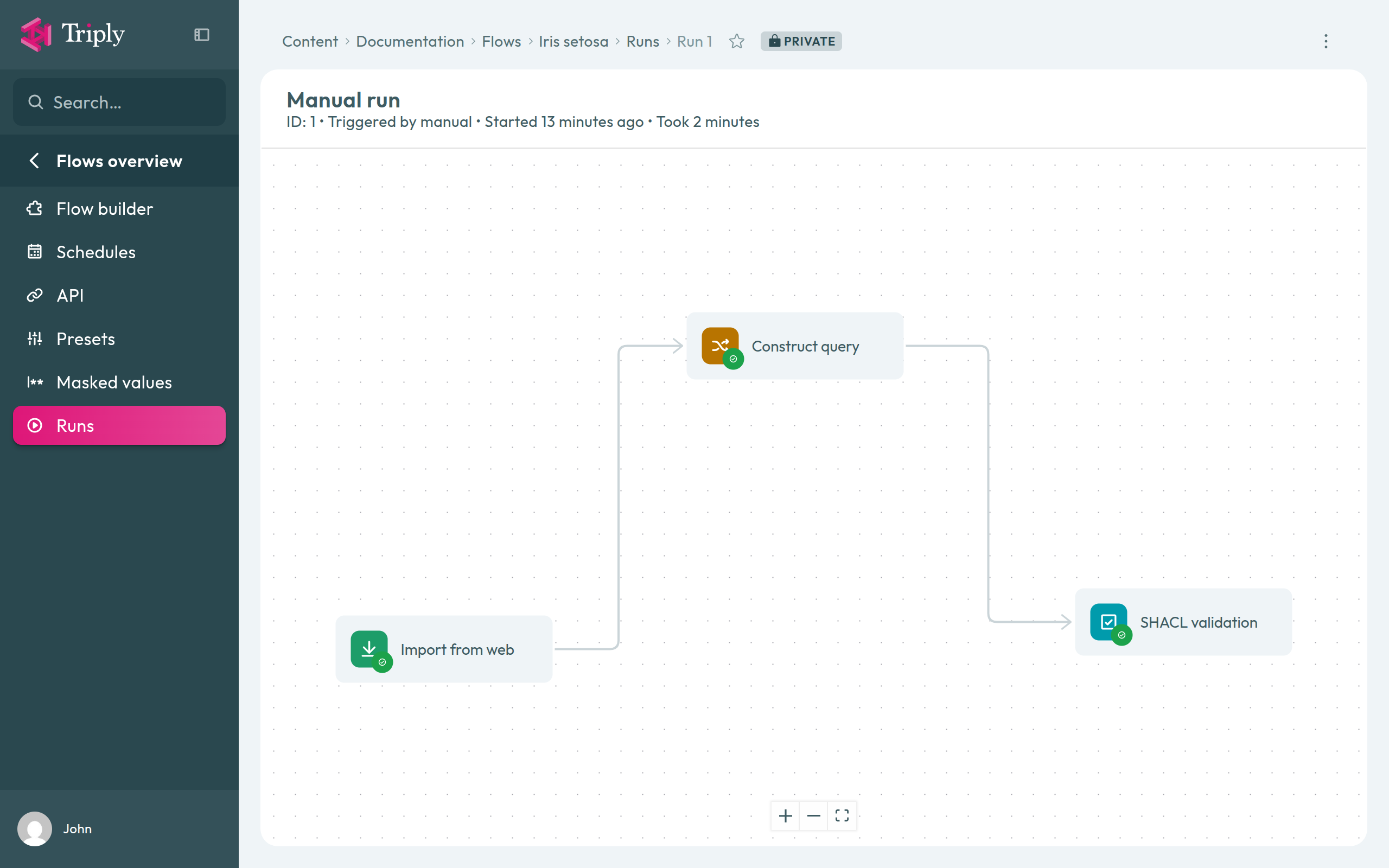
Click **Run**, then **Run** again in the dialog. The run's page opens, showing the same three
tasks. Each gets a green mark as it finishes; the whole run takes a couple of minutes, most of it
spent importing.
## 6. Look at what it made
Open the `iris-flow` dataset from your account page. Its graphs page lists seven graphs:
- the five graphs of the Iris dataset, which the import brought in;
- `https://example.org/iris/setosa`, with 450 statements: 50 observations of eight statements
each, plus the 50 `qb:Observation` types the query added;
- `https://example.org/iris/report`, the validation report, with two statements. One of them is
`sh:conforms true`: every *setosa* observation fits the shapes.
## What you built
A flow that anyone with access to it can run again with one click. Every task wrote to an
ordinary dataset, so each step's result can be opened and queried — which is how you would find
out where a flow goes wrong.
Tasks add to the graphs they write to. Run the flow a second time and the data graphs stay as
they are, because the same statements are already there, but the report graph holds two
reports.
## Next steps
- [Use variables in a flow](https://docs.triply.cc/how-to/use-variables-in-a-flow/) to make the URL and the
dataset name something you choose per run.
- [Run a flow](https://docs.triply.cc/how-to/run-a-flow/) on a schedule, or from another system.
- [Flows](https://docs.triply.cc/concepts/flows/) explains why tasks read and write datasets rather than pass data
along, and what the edges really decide.
- [Flow tasks](https://docs.triply.cc/reference/flow-tasks/) lists everything else a flow can do.