Connect an AI assistant
On its own, an AI assistant knows nothing about the data in TriplyDB. Once you connect it, it can look at the content your account has access to, answer your questions about it in plain language, and do work for you: find information, write and save queries, build data stories, or import data. You don't need to know SPARQL to get useful answers.
This page shows how to connect an assistant to TriplyDB in four steps, gives examples of what you can ask it to do once it is connected, and explains how to remove its access again.
TriplyDB connects to AI assistants through the Model Context Protocol (MCP), a standard that many AI assistants support.
Your assistant must identify itself with a Client ID Metadata Document, which Claude and Claude Code do.
Steps
-
In TriplyDB, copy the connection address.
- In the console, click your account at the bottom of the left-hand sidebar and choose "User settings".
- Open the "Connected apps" section.
- Under "Connect a new application", copy the address that ends in
/mcp. It is your instance's API address followed by/mcp, for examplehttps://api.example.org/mcp.
-
In your AI assistant, add TriplyDB and paste the address.
- Open your client's settings and add a new connection. Your client's documentation explains how. For example, see the instructions for Claude or Claude Code.
- Paste the address you copied.
-
In TriplyDB, log in and allow access.
- The first time you use the connection, your client sends you to TriplyDB.
- Log in if you aren't already.
- Check which application is asking: TriplyDB shows the web address it identifies itself with. Check also whether it wants to only read your data or also make changes.
- Approve.
-
Optionally, in your AI assistant, ask a question.
- Try something like "Which TriplyDB datasets can I see, and what is each one about?"
Common use-cases
| Task | Description | Example prompt |
|---|---|---|
| Understand a dataset | Ask questions about a dataset in plain language to learn what it contains and how it is organised. | "Pick one of the datasets I have access to, and explain what information it contains and how it is organised." |
| Write SPARQL queries | Inspect a dataset's classes and predicates, then write a query and run it. | "Write and run a SPARQL query against that dataset that lists its ten most common classes." |
| Save a query for reuse | Turn a working query into a named, shareable, versioned saved query. | "Save that last query as common-classes, with a Table visualization." |
| Publish a data story | Narrate a set of saved queries into a data story, with markdown context around the embedded results. | "Turn common-classes into a data story explaining what the dataset is about." |
| Import data from a URL | Create a dataset and import RDF from a URL. | "Find the download URL of the SKOS vocabulary, then create a dataset called skos-vocabulary and import it using that URL." |
| Account and dataset housekeeping | Update a dataset's metadata or manage a group's members. | "Which datasets do I own, and which groups am I a member of?" |
See the MCP server reference for the full list of what an AI assistant can do in TriplyDB.
Revoking access
Open the same "Connected apps" section of your user settings (click your account at the bottom of the left-hand sidebar, then "User settings"). It lists every application you've authorized, with its name, when it was connected, when it was last used, and its scope. Each one has a "Revoke" button next to it:
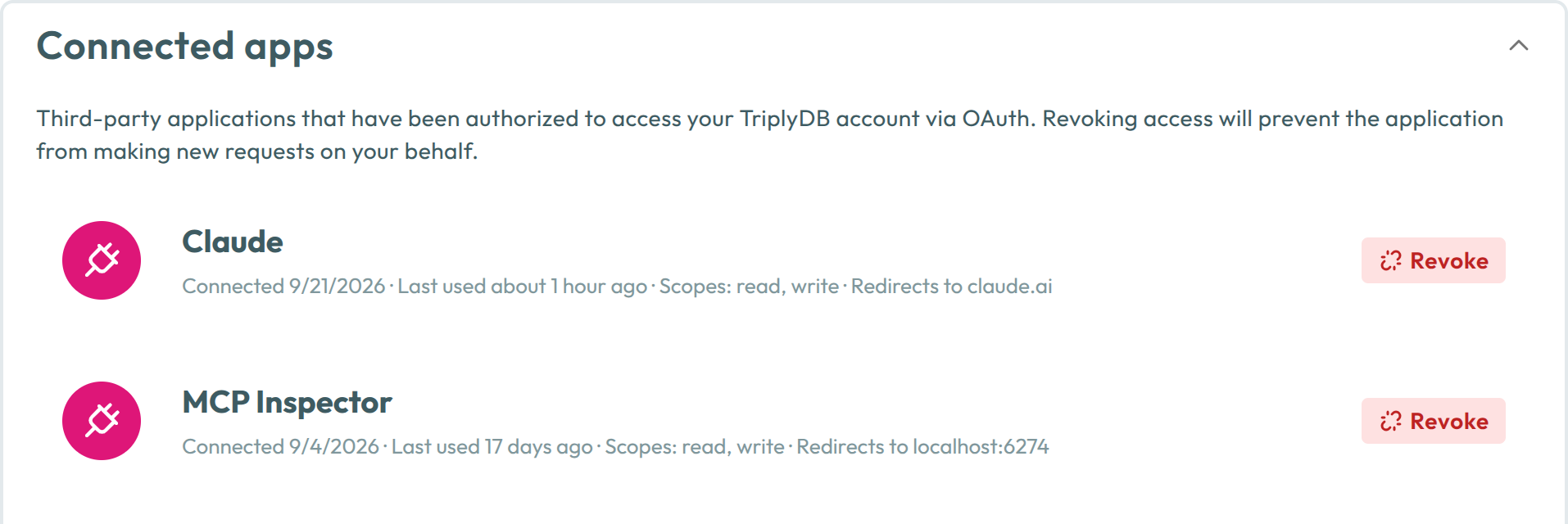
Click "Revoke" next to an application and confirm. It loses access immediately and can't make new requests on your behalf.
Related
- MCP server — every tool an assistant can use in TriplyDB
- Glossary — what "AI assistant" and "MCP" mean here