Edit SKOS data
The Editor is available in specific instances of TriplyDB. It allows creating, updating or deleting data that have a structure that is defined in a SHACL shapes graph. For example, a shapes graph could define the structure of a concept scheme based on SKOS, or it could define the structure of a data catalogue based on DCAT.
Because the forms are generated from the shapes graph, they always reflect the structure of your data model: mandatory properties are marked, optional ones can be added, and dropdown lists appear wherever the data allows. It is meant for knowledge managers, data stewards and domain experts who maintain the content of a dataset — no knowledge of SPARQL or RDF syntax is needed, though familiarity with the model being edited helps. Changes are written back to the dataset immediately.
Two things have to be true before you can start: the dataset needs a SHACL shapes graph, and the Editor has to be enabled for the instance. If "Editor" does not appear in the left-hand navigation, ask your TriplyDB administrator. Without a shapes graph the Editor cannot generate forms at all — see Data model: augmenting an ontology with SHACL shapes for getting from an ontology to shapes.
This section describes using the Editor to edit SKOS concept schemes as an example. The Editor works in a similar way for other views.
In order to open the Editor, select the dataset that you want to work with. If your instance provides the feature, you will see "Editor" on the left-hand side. Pressing there will open the Editor pane.
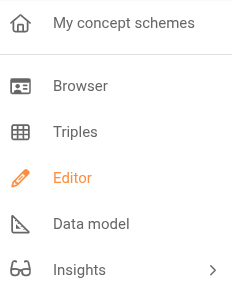
Alternatively, instance hyperlinks can be dragged and dropped on the "Editor" menu entry, to directly view the instance in the Editor.
About Editor forms
The Editor uses forms to create or edit instances of a class. The image below shows elements of a form.
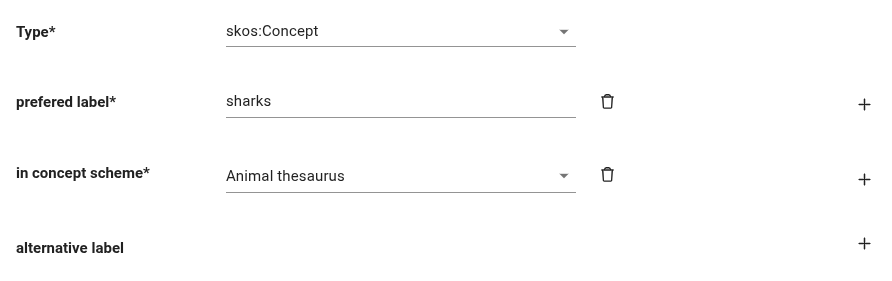
In Editor forms, an asterisk (*) is used to mark mandatory properties of an instance. It is not possible to save resources that do not have a value for all mandatory properties.
In order to add a property, press the plus symbol (+). Some properties can occur multiple times, with different values.
In order to remove a property, press the waste basket symbol.
Input fields for values support dropdown lists where possible. Alternatively, it is possible to start typing to bring up a list of matching values. The availabilty of dropdown lists is indicated by a small downward facing triangle on the right of the input field.
Choosing an Editor view
A view is a configured perspective on the dataset: which classes and concept schemes are shown, and how they are presented. The SKOS view shows a concept tree; other views may present the data differently. A single dataset can have several.
Two hierarchy views are built in: SKOS, for concept schemes, and DCAT, for data catalogsPreview (see DCAT: navigating catalogs).
In the top left corner of the Editor pane, the view button can be used to select a different view, if multiple views are configured. The image below shows the SKOS view being selected.
Creating a new instance
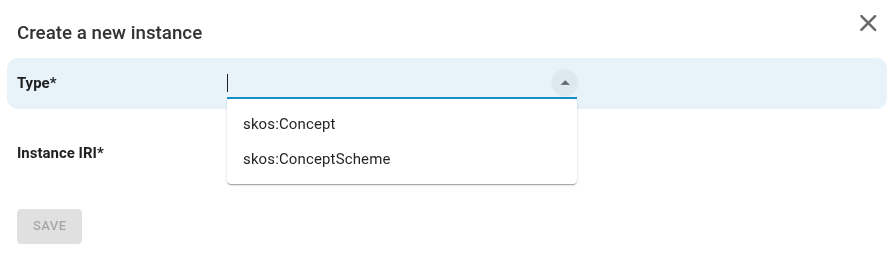
In the top right corner of the Editor pane you can find the create button. It can be used to create a new instance of a class that is defined in the shapes graph.
Pressing the create button will open a form that allows picking the class for the new instance, and setting other properties. By default, each resource needs to have an IRI (Internationalized Resource Identifier). The Editor generates an IRI, which can be changed, if needed.
Finding an instance
Next to the create button there is an input box that can be used to find an instance based on its label. All data that are configured to be used by the Editor are included in the search. You can start typing to populate a dropdown list with resources that have a matching sequence of characters somewhere. The matching characters are displayed in boldface.

SKOS: selecting concept schemes
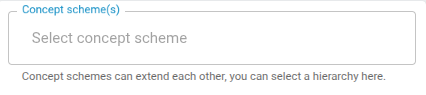
In the SKOS view, it is possible to select a concept scheme to work with. Press the concept scheme(s) input field to choose a concept scheme from a dropdown list. Alternatively, start typing to find a concept scheme with a matching character sequence.
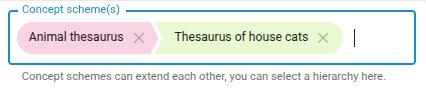
SKOS concept schemes are allowed to be chained, by means of skos:narrowMatch and skos:broadMatch relations between concepts. Once a concept scheme is found, you can press in the space behind its name to find and select nested concept schemes. Concept schemes in the chain will be assigned different colours, as shown in the image below.
SKOS: navigating concept schemes
Once one or more concept schemes have been selected, the hierarchy of concepts and concept schemes is displayed in a tree view:
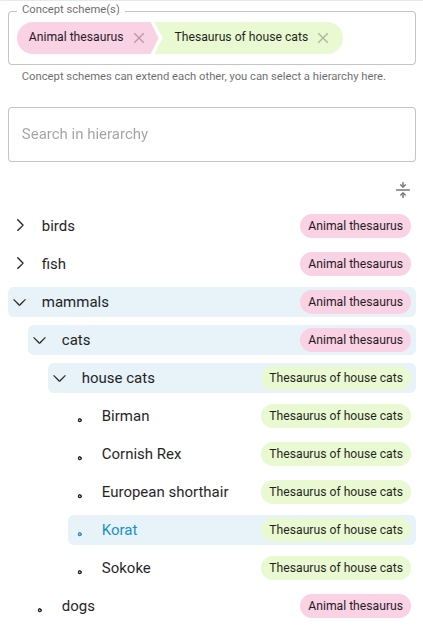
The symbol > in front of a concept means that the concept has underlying elements. Pressing > will expand the concept. The symbol will then point downward to show that the concept has been expanded. When a concept has no underlying concepts, its name is preceded by a dot (•).
As concepts can be defined in different nested concept schemes, the coloured label of the concept scheme is displayed for each concept.
To search within the concept hierarchy, use the Search in hierarchy input field.
When a concept in the concept hierarchy is selected, detailled information is displayed on the right-hand side of the Editor pane.
PreviewWhen you pick a broader, narrower or related concept, the list offers only concepts from the concept's own scheme(s); for a mapping property (skos:exactMatch, skos:closeMatch, skos:broadMatch, skos:narrowMatch) it offers only concepts from other schemes. Each concept is shown with its concept scheme.
DCAT: navigating catalogsPreview
The DCAT view, labelled Catalog, is offered once the data model has shapes for DCAT classes. It shows the catalogs in the dataset as a tree: under a catalog, the datasets, data services, catalogs and catalog records it lists with dcat:dataset, dcat:service, dcat:catalog and dcat:record; under a dataset, its distributions (dcat:distribution); and under a distribution, the service that gives access to it (dcat:accessService). The inverse properties DCAT allows, such as dcat:inCatalog, are followed as well, and a dataset series lists the datasets that refer to it with dcat:inSeries.
Datasets, data services, distributions and other catalog resources that no catalog leads to are listed in a section of their own, Not reachable from a catalog, grouped by class.
To find a catalog, dataset, data service, distribution or catalog record, type in the search field above the tree: it also finds the resources that sit deeper in the tree.
Instance details
When an instance (for example, a SKOS concept) is selected on the left side of the Editor pane, a description of the instance is shown on the right:
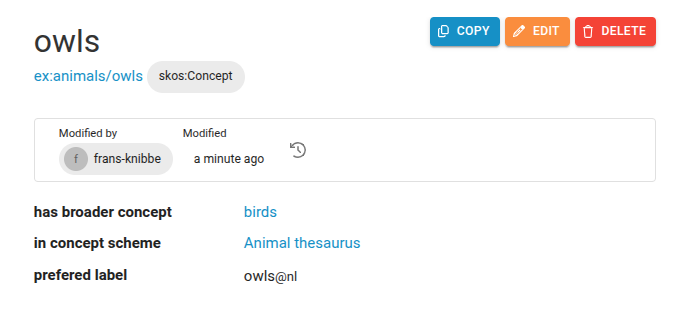
Below the name of the instance, its IRI is displayed as a hyperlink (blue underlined). The hyperlink can be dragged and dropped on other visualisation in TriplyDB, like Browser or Triples. To the right of the instance hyperlink its class is shown.
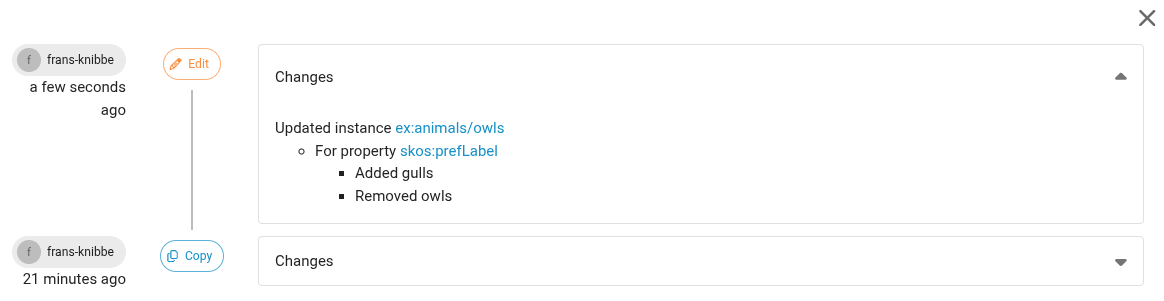
For instances that have been edited in the Editor, a history of changes is recorded. Details of the last change are shown by Modified by and Modified. The symbol of the backward turning clock can be pressed to show the complete modification history of the selected instance. The image below shows an example.
Copying an instance
The copy button can be used to copy an instance. That can be useful if a new instance is needed that is similar to an existing one.
Editing an instance
The edit button can be used to edit the properties of an instance.
Deleting an instance
To remove an instance, press the delete button. You will be asked for a confirmation before the instance is really deleted.
Data model: augmenting an ontology with SHACL shapes
The Editor renders forms based on the SHACL node shapes in a dataset's shapes graph. When you import an ontology that defines classes (via rdfs:Class / owl:Class) but does not yet provide SHACL node shapes for them, those classes can now be edited directly from the data model.
Such shapeless classes — including classes that only appear as the parent of another class — are shown in the data model tree alongside fully shaped classes. Selecting one and editing it adds a SHACL node shape for that class in the background, so you can start defining its properties without first authoring the shape by hand.
When you create a class, the picker suggests the ontology classes that do not yet have a shape. Choosing one pre-fills the label, description, and parent class from the ontology. The "create a class" dialog also blocks reusing the IRI of an existing class, preventing you from accidentally overwriting it.
Deprecated terms
Classes, properties, and SKOS concepts that are marked as deprecated with owl:deprecated (value true) are visually indicated in the Editor. Deprecated terms are shown with strikethrough styling in the class navigator and the SKOS concept tree, so they are easy to recognise while browsing.
When a deprecated resource is opened, its title in the instance detail pane is also struck through, and a warning is displayed: "This resource is deprecated." Deprecated terms remain fully viewable and editable — the marking is informational only.
Related
- SKOS — concept schemes, labels and hierarchies, and why they work this way
- SHACL — what a shapes graph states, and what the Editor reads from it
- Glossary — the terms used above, defined once
- Data views — the Browser and Triples views an instance can be dragged onto