Build a data story
A TriplyDB data story is a way of communicating information about your linked data to humans. A story is built from paragraphs with explanatory text, along with tables, graphs and maps created by saved SPARQL queries. Readers see the results as they are now, not a screenshot taken when the story was written.
What a story is for
A saved query answers one question and returns a table. It carries no explanation of why the question matters, what the columns mean, or what the reader should conclude. A slide deck or a blog post can carry that explanation, but it freezes the moment it is written.
A story is both. The text and the query results sit on the same page, and the results re-run when the page is opened, so when the underlying data changes, the story changes with it.
That layering is worth knowing before you start: a story is a presentation layer, not a copy. Each query element points at a saved query that exists independently of the story, so editing that query changes every story using it, unless it is pinned to a version.
Creating a data story
Data stories are created from the page of the account that will own them — your own account, or a group you are a member of. Open it, click the "New" button in the top-right corner and choose "Story". The form below appears.
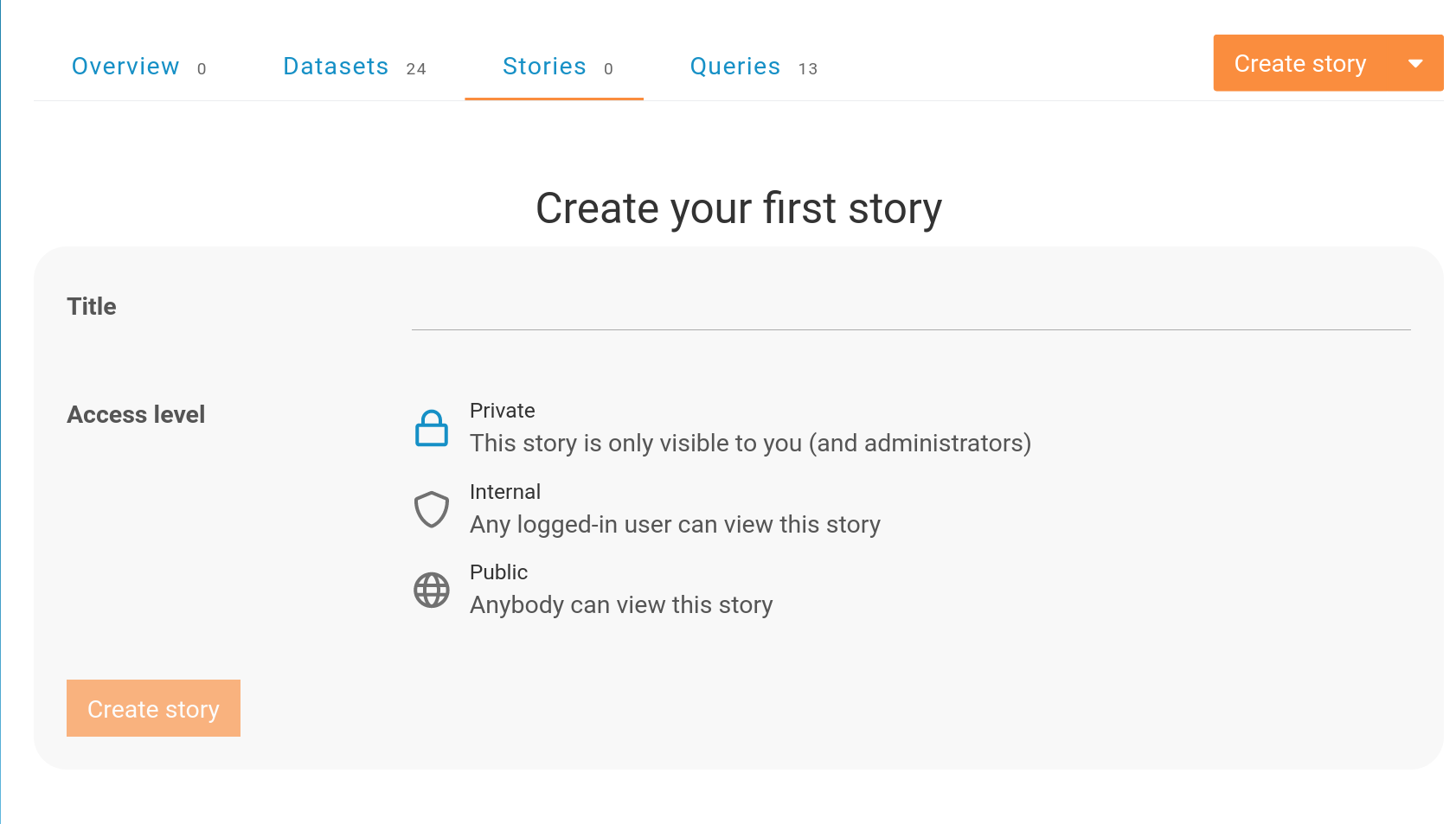
In this form, you can choose the owner, fill in the title and set the access level. A private data story can be neither shared nor embedded. When everything is set, press the "Create story" button. This will take you to a new page where you can customize the data story.
To add a query element you also need at least one saved query — your own, or one shared with you.
Editing a data story
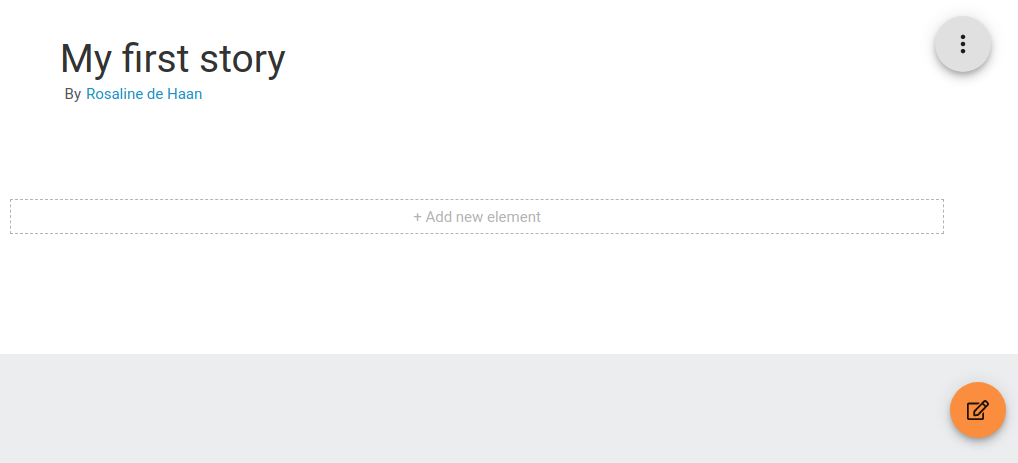
In the top right corner of the page there are two buttons: a pencil, which opens the story for editing, and a cog, which opens the menu below.
| Option | What it does |
|---|---|
| Settings | Change the title and the access level of your story |
| Change banner | Choose the image shown at the top of the story. Wide images work best |
| Copy | Copy the story to a different user or group |
| Transfer | Move the story to a different user or group |
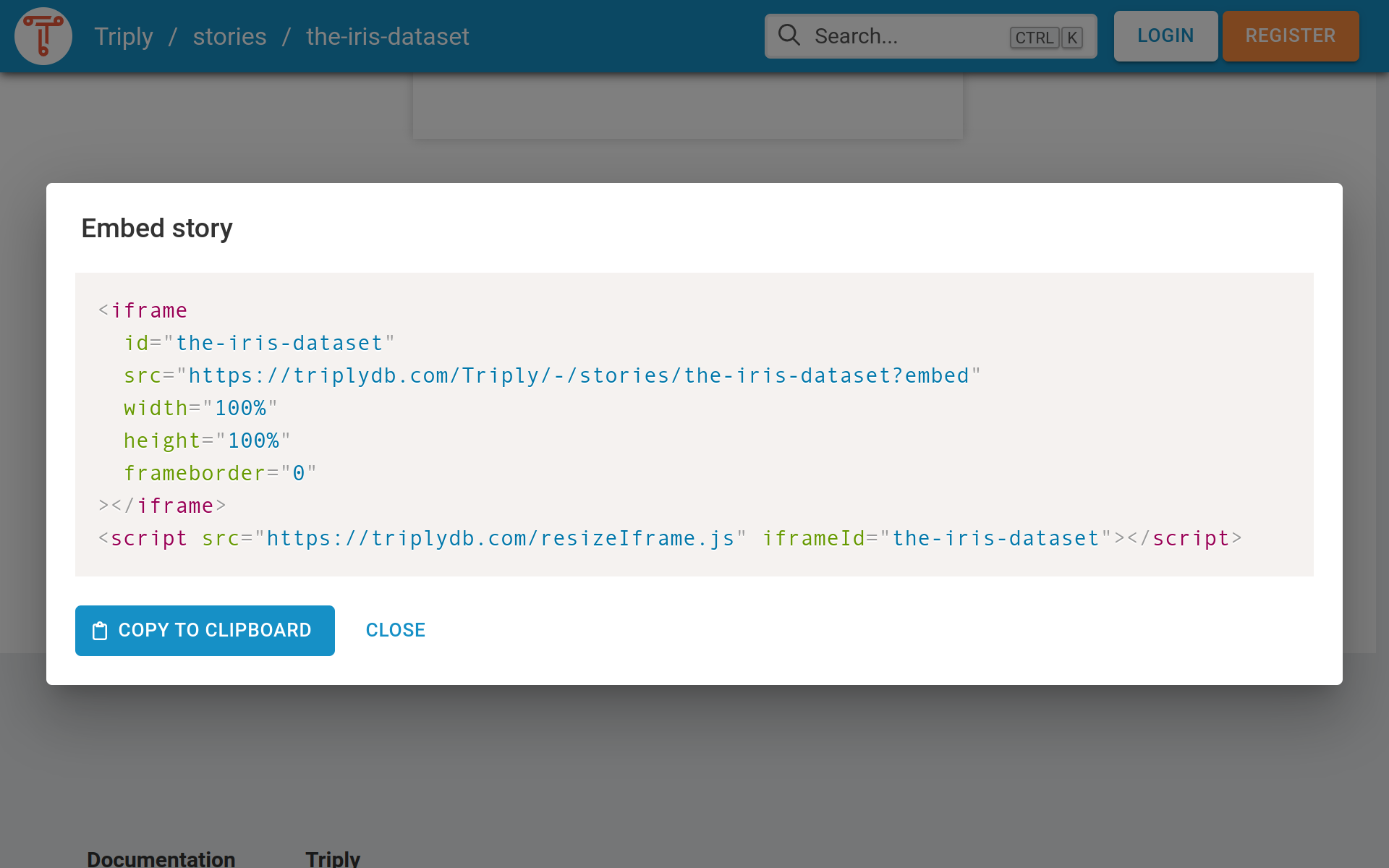
| Embed | HTML to embed the story in a web page using an iFrame |
| Dialog and print options to print the story | |
| Delete | Delete the story |
Copying and transferring move the story, not the queries its elements point at.
While you are editing, a bar along the bottom of the page reads "Edit mode — Your changes are saved automatically". Press "Finish editing" there to return to the reader view. It is worth checking the reader view before you share, because it is how readers of your story will perceive this page.
Adding elements
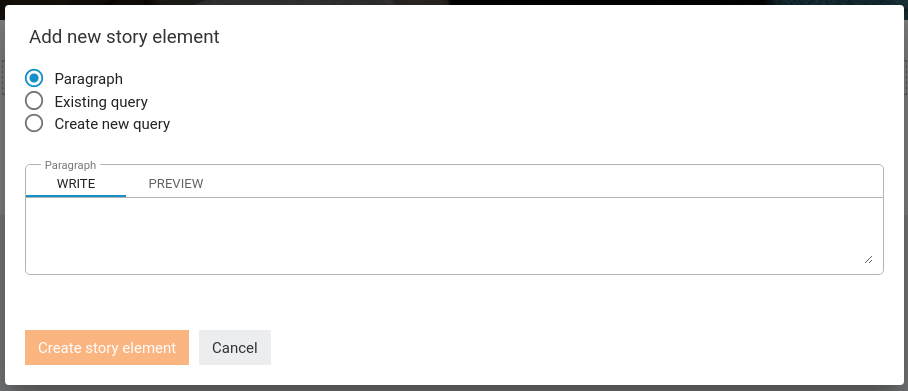
To create your first element press "+ Add new element". This will open a new form as shown in the images below. Here you can select what kind of element you want to add to your data story; you’ll have the option to write text as Markdown, to select an already existing SPARQL query, or even to create a new SPARQL query.
| Type | Contains | Notes |
|---|---|---|
| Paragraph | Markdown text | Rendered as HTML, previewable. Supports images and syntax-highlighted code blocks |
| Existing query | A reference to a saved query | Optional version selector and caption |
| New query | A query created from within the story |
Existing query
Let’s start by selecting a query for our data story. You can create your own, or search in the Query search bar to select an existing one to which you have access. Optionally, you can select the version of the query and set the caption. When everything is set, press "Create story element". And look, we have added our first element to our story!
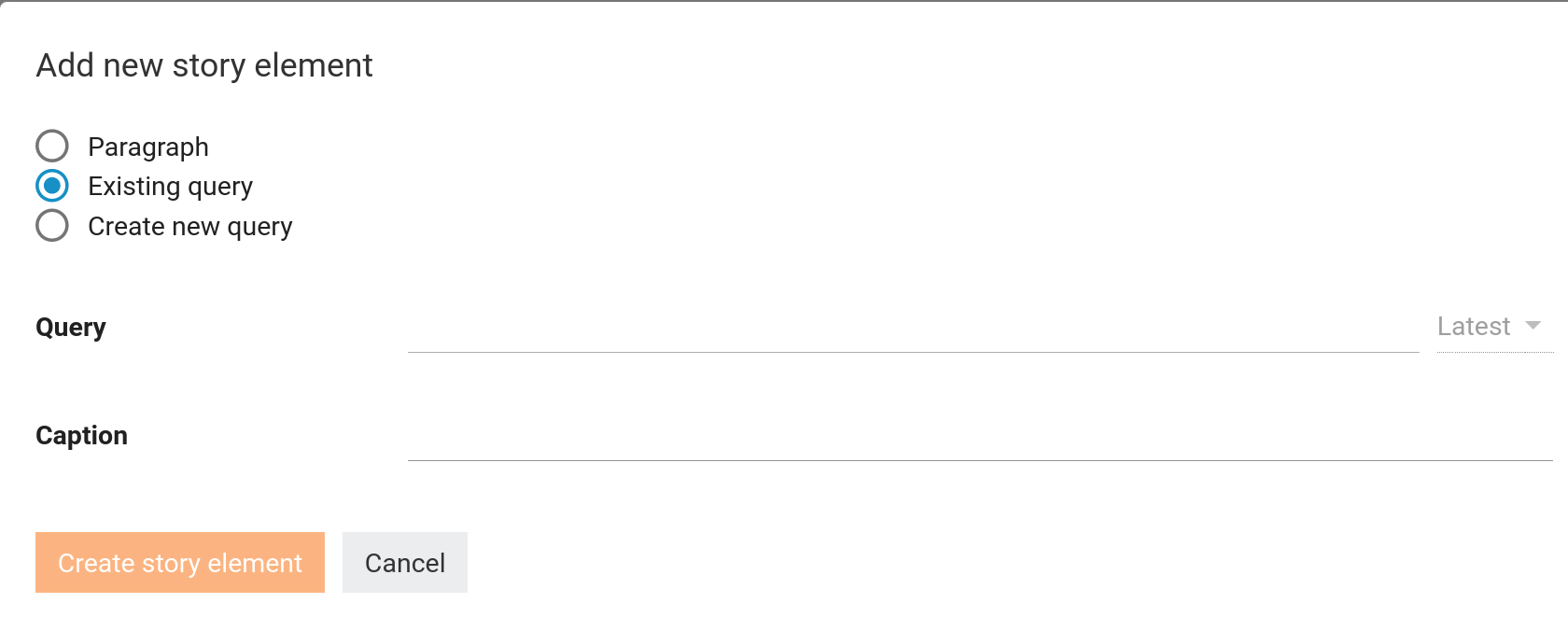
The result is live: it re-runs whenever the story is opened. Selecting a version pins the story element to that version, so later edits to the query do not affect the story.
Paragraph
Data sometimes needs accompanying text to be completely understandable. TriplyDB not only supports writing plain text, but also Markdown. The Markdown that you’ll add in the paragraph text box will be rendered as HTML and can be previewed. TriplyDB also supports images, and even code blocks with highlighting for the most common linked data and programming languages.
See Markdown support for which Markdown TriplyDB accepts.
Sharing and embedding
Before you know it, you will have created your first data story. Congratulations! Now it is time to share it with the world, but don’t forget to set the access level to “public”. Then you have two options: 1. You can simply share the URL in TriplyDB. 2. You can embed the Data Story on your own webpage. Scroll all the way to the end of your Data Story and click the “</> Embed” button. This brings up a code snippet that you can copy/paste into your own HTML web page.
A story that is not public cannot be opened by people outside your organisation, and an embedded private story shows your readers nothing.
Related
- Work with saved queries — the queries a story's elements point at
- Access control — what public, internal and private mean here
- Markdown support — what you can write in a paragraph