Work with saved queries
A Saved Query is a versioned SPARQL query with its own URL. Using this URL, users are able to view any version of the query and its results. It can also be used to run the query and retrieve the results from a browser or a program, removing the hassle of figuring out how to run a SPARQL query.
A saved query is the query object; each save adds a version; the URL addresses either, frozen with a version number and following the latest without one. See Saved query for how the three relate.
How to save a query
You need to be logged in and have authorization rights on the dataset; without them the save button does not appear.
- Write the query in the SPARQL IDE and pick a visualization.
- Click the save button:
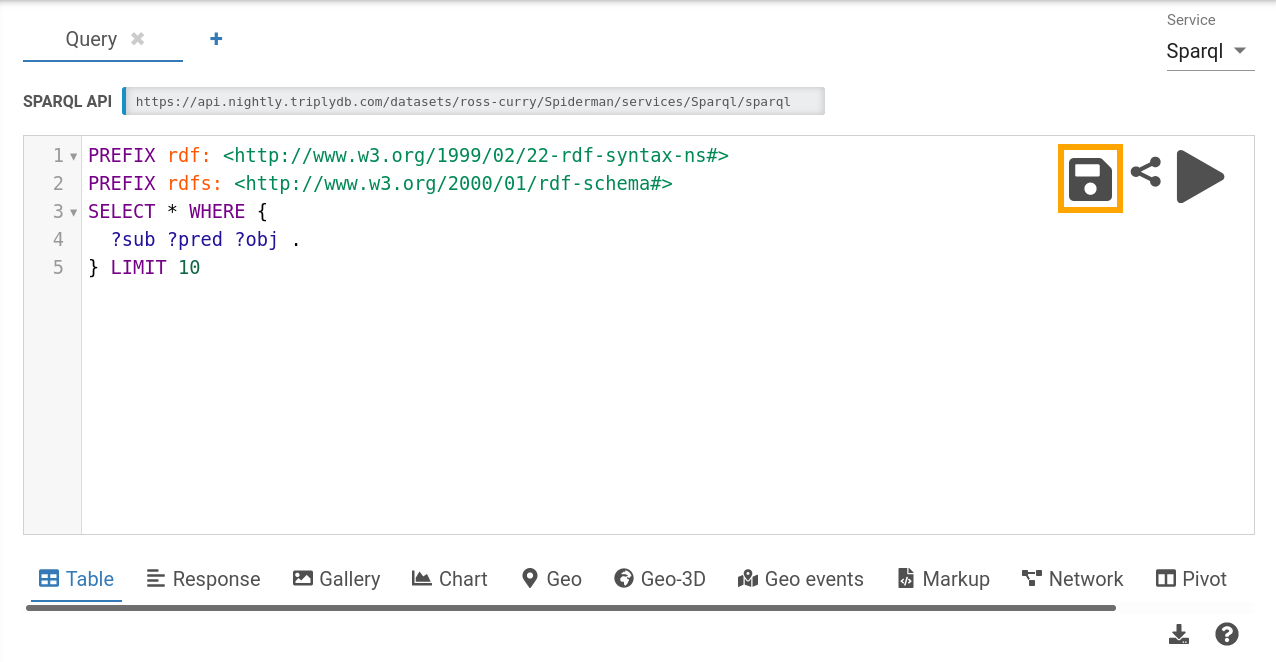
The visualisation is saved along with the query — Table, Response, Chart, Geo and the rest — so pick the one you want people to see when they open the link.
Creating a new version
Updating the saved query can be done by clicking a query in the Saved Queries tab and editing the query or the visualization. Hit the save button to save it as a new version.
Older versions stay reachable at their own URLs.
Deleting a saved query
If you want to delete a saved query, you can do so by clicking the three dots on the top right corner of the query, as shown in the image below, and then clicking Delete.
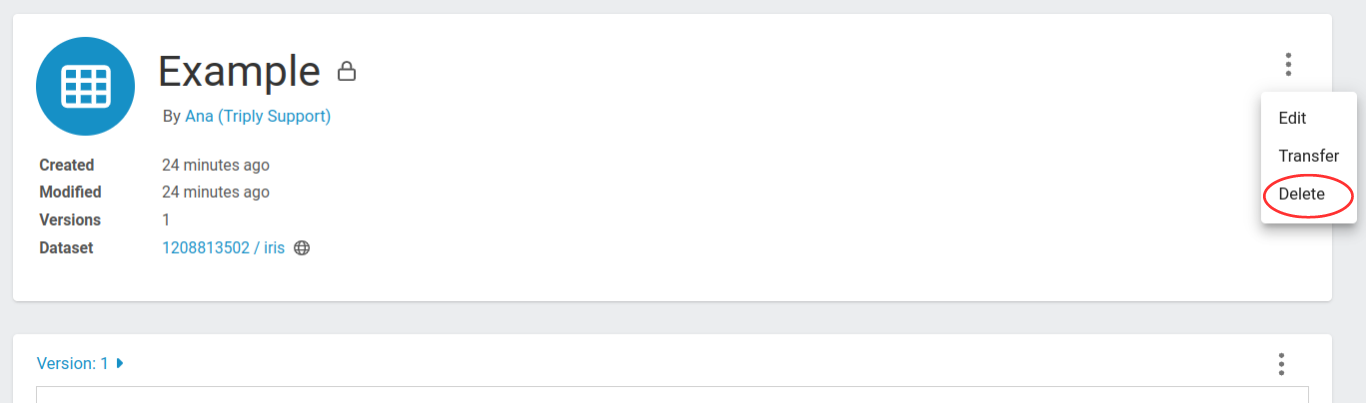
Deleting removes the query and all of its versions.
Sharing a saved query
To share a saved query, for example in data stories, you can copy the link that is used when you open the query in TriplyDB. For version 9 of the query timeline-cars under the account DBpedia-association, that link is:
https://triplydb.com/DBpedia-association/-/queries/timeline-cars/9To follow the latest version instead, omit the version number:
https://triplydb.com/DBpedia-association/-/queries/timeline-carsPin a version for anything that has to keep working — an application, a citation, a published data story — and omit it when readers should see current work.
Sharing a link does not grant access to the underlying dataset. If a colleague opens the link and sees nothing, check the query's access level.
The SPARQL IDE also has a share icon, in its top-right corner, which offers the query as a URL-encoded link, as a short URL redirecting to it, and as a cURL command for testing from a terminal. URL-encoded queries get long, and some applications cut URLs off at a maximum length — often 1,024 characters. Saved queries have none of those limits, which is why they are the better option for anything you intend to keep.
Transferring and copying a query
Both move the query between an account and a group, in either direction, and neither moves the dataset it queries.
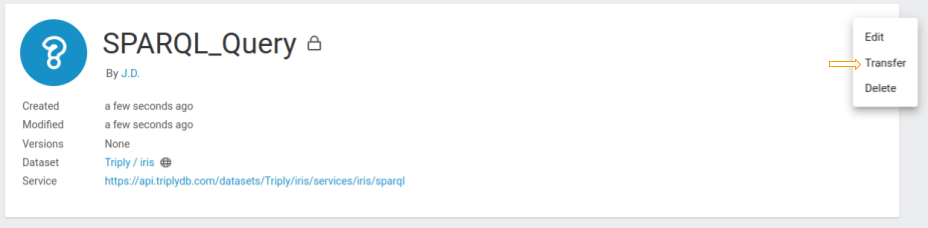
To transfer a query, go to the settings field on the query page,

choose transfer:
and then choose where the SPARQL query should be moved to:
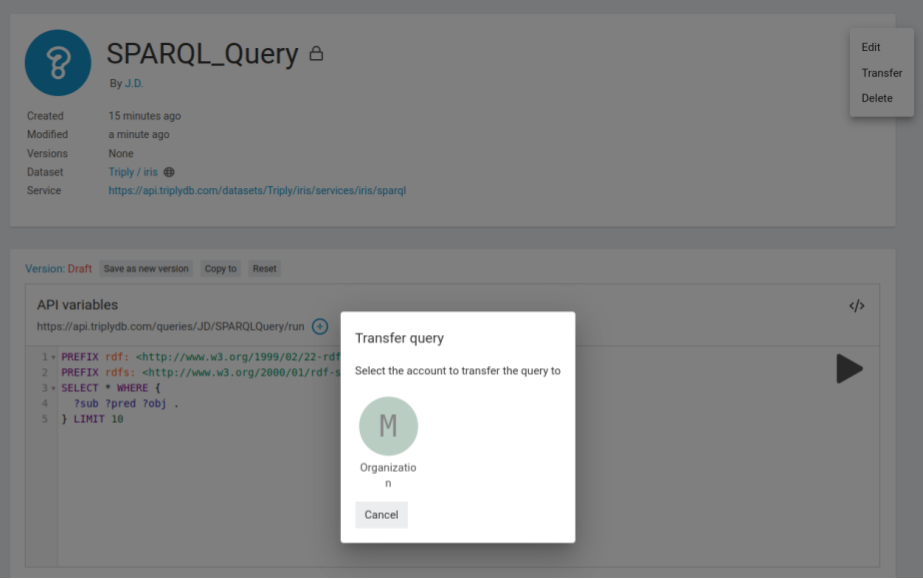
After the destination is set you are redirected to the query's new page.
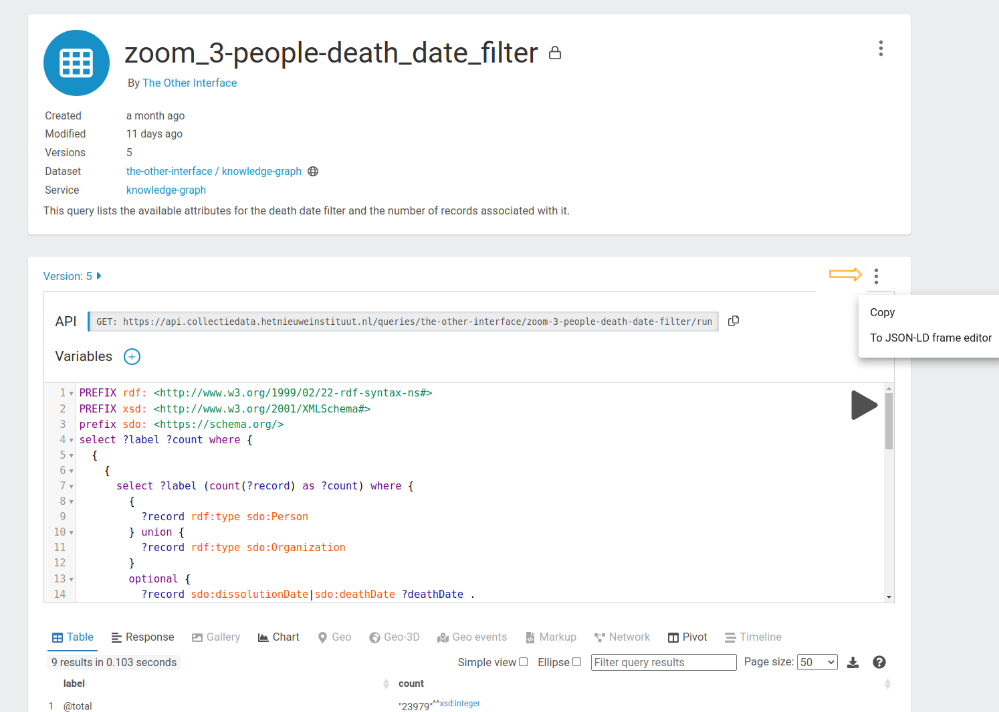
To copy a query instead of moving it, click the three dots in the upper right corner of the query and choose the copy option:
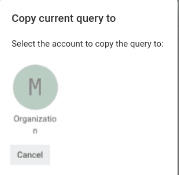
Then choose the destination:
Downloading a query result
The result of a query can be downloaded via the TriplyDB interface. After saving the query, open it in TriplyDB. e.g. https://triplydb.com/DBpedia-association/-/queries/timeline-cars/.
You can download results in different data format, depending on which visualization option you use. For example, if you want to download the results in a .json format, you can choose the option Response and click on the download icon or scroll down and click on Download result.
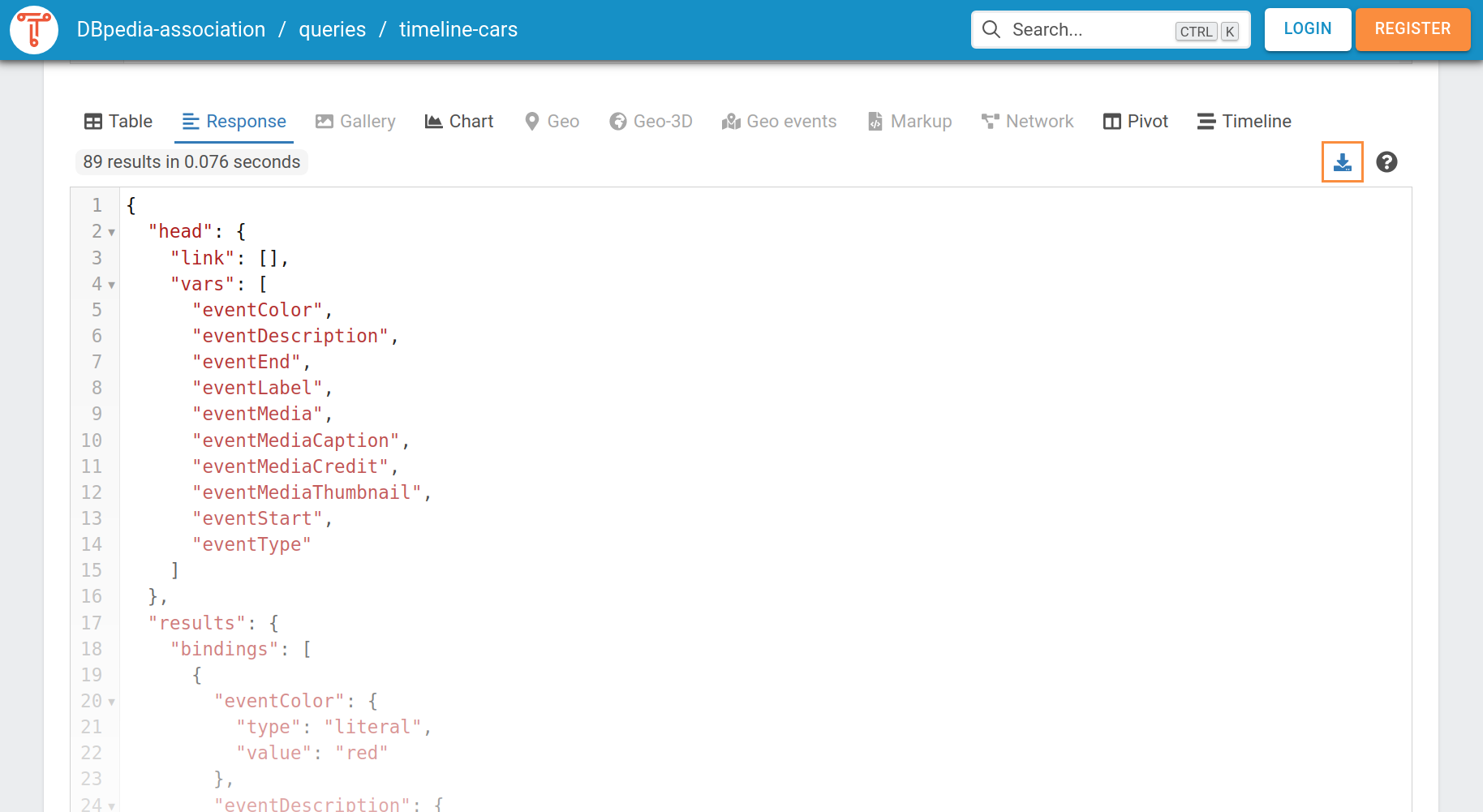
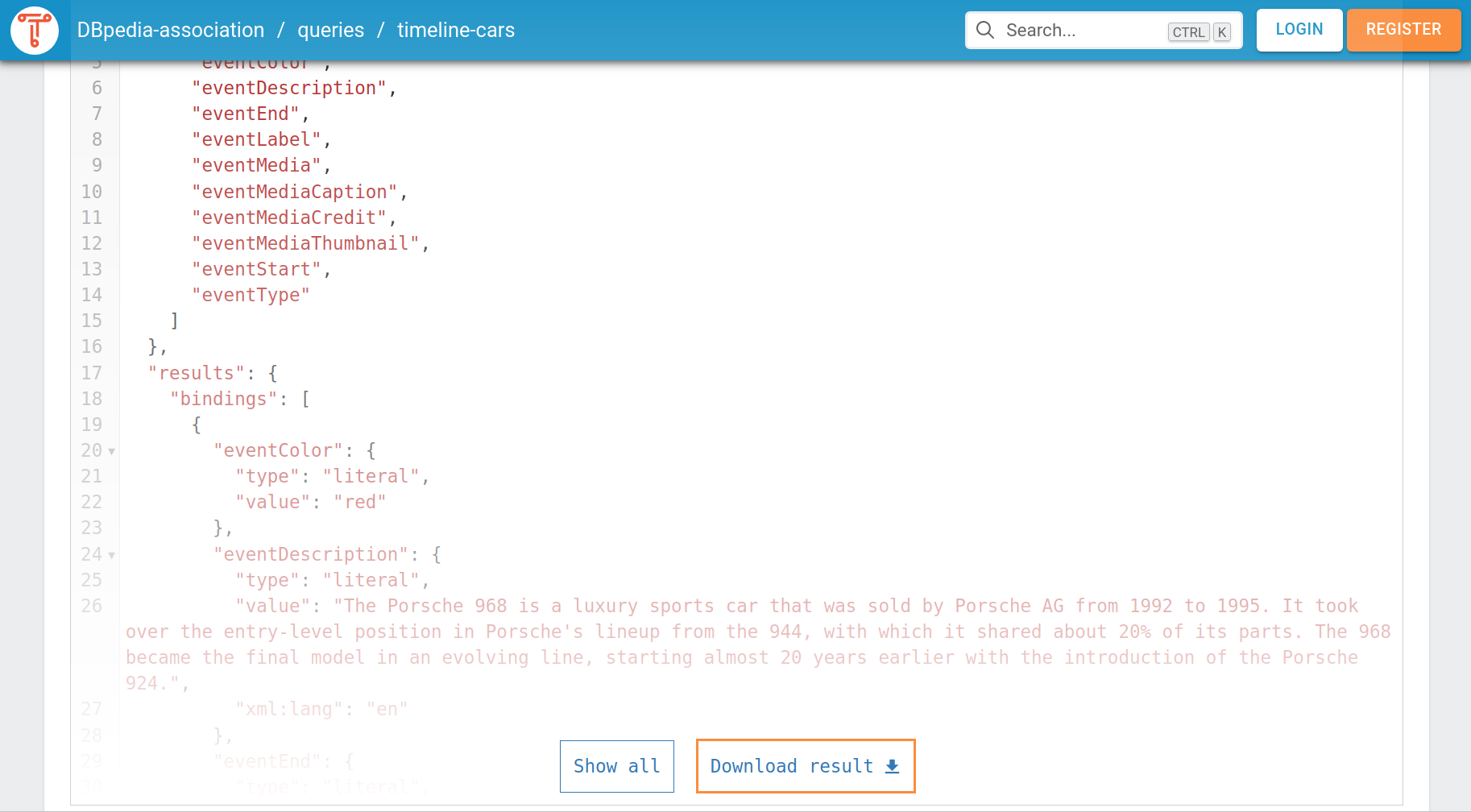
The downloaded file is automatically stored in the Downloads-folder and has the name of the query. In our example, the file is called timeline-cars.json.
Not every visualisation can be downloaded — Gallery, Geo, Geo-3D, Geo events and Timeline have no download at all. See Result formats for which visualisation produces which file.
Using a saved query as a RESTful API
Each TriplyDB instance has a fully RESTful API. The TriplyDB RESTful API is extended for saved SPARQL queries. A saved query can be used as a RESTful API to retrieve data from your linked dataset. The URL next to the keyword API is the RESTful API URL and can be used with RESTful API libraries. You can copy the RESTful API by pressing the copy button just behind the URL. Pressing the copy button from the above query will result in the following run url:
https://api.triplydb.com/queries/DBpedia-association/timeline-cars/runWhen you copy this URL in your browser or fetch the URL with curl, you will get a get request to a RESTful API and get a JSON representation of the data in your browser or command window.
A saved query can also declare API variables: named parameters substituted into the query
string when it runs. That is what lets one saved query answer many questions — an application
passes different inputs instead of building SPARQL strings, or keeping a separate saved query per
case. Variables are passed as arguments to the endpoint, or as the first argument to results()
in TriplyDB.js.
A single result set stops at 10,000 results. See Paginate SPARQL results for retrieving more than that.
Using a saved query in Python or R notebooks
SPARQL queries as a RESTful API, also means you can transport your data to your Python script, R script or Jupyter notebook. To use the result set from your SPARQL query you need to connect your script to the saved SPARQL query. To do this you will need to write a small connector. To help you out TriplyDB has added a code snippet generator for Python and R. This snippet contains the code to retrieve the data from the SPARQL query into your script or notebook. You can open the code snippet generator by clicking on the '</>' button on the right side of the screen.
Clicking the '</>' button opens the code snippet screen. Here you select the snippet in the language you want to have, either Python or R. You can then copy the snippet, by clicking the 'copy to clipboard' button or selecting the snippet and pressing ctrl-c. Now you can paste the code in the location you want to use the data. The data is stored in the data variable in JSON format.
When the SPARQL query is not public, but instead either private or internal, you will need to add an authorization header to the get request. Without the authorization header the request will return an incorrect response rather than an obvious refusal. See Create an API token for the token that header carries.
Query metadata
Every Saved Query has a metadata section, holding a title and description you write, the access level and version, and links to the dataset and the service the query runs against. Further metadata can be written into the query string itself as GRLC annotations.
See Saved queries for the fields and the annotation format.
Related
- Saved queries — URLs, limits, result formats and metadata
- Paginate SPARQL results — getting past the 10,000 limit
- Build a data story — presenting a query's results with explanation
- SPARQL: the basics — writing the query in the first place